

Connect Feedovate to Linear so customer feedback and engineering work stay aligned. Push feedback into your backlog, link existing issues, keep statuses in sync both ways, and jump between tools without copy-pasting.Documentation Index
Fetch the complete documentation index at: https://docs.feedovate.com/llms.txt
Use this file to discover all available pages before exploring further.
Why Connect Linear?
Single Source of Truth
Each feedback post maps to at most one Linear issue. Everyone sees the same identifier on both sides.
Two-Way Status Sync
Map Feedovate statuses to Linear workflow states. Updates in either tool flow to the other automatically.
Work Where You Ship
Engineers stay in Linear. Product and support stay in Feedovate. Links and sidebar cards bridge the gap.
Import from Linear
Tag an issue with the Feedovate label in Linear to create a linked feedback post — ideal for work that started in engineering first.
How Two-Way Sync Works
Feedovate and Linear stay connected through links, sync rules, and webhooks.| Direction | What happens |
|---|---|
| Feedovate → Linear | You push or link feedback, or enable auto-push. Status changes on linked feedback update the issue state when a matching sync rule exists. |
| Linear → Feedovate | When a linked issue’s workflow state changes, Feedovate updates the feedback status using the same rule (in reverse). |
| Linear → Feedovate (import) | Adding the Feedovate label to an issue creates a new feedback post and links them — if the issue is not already linked. |
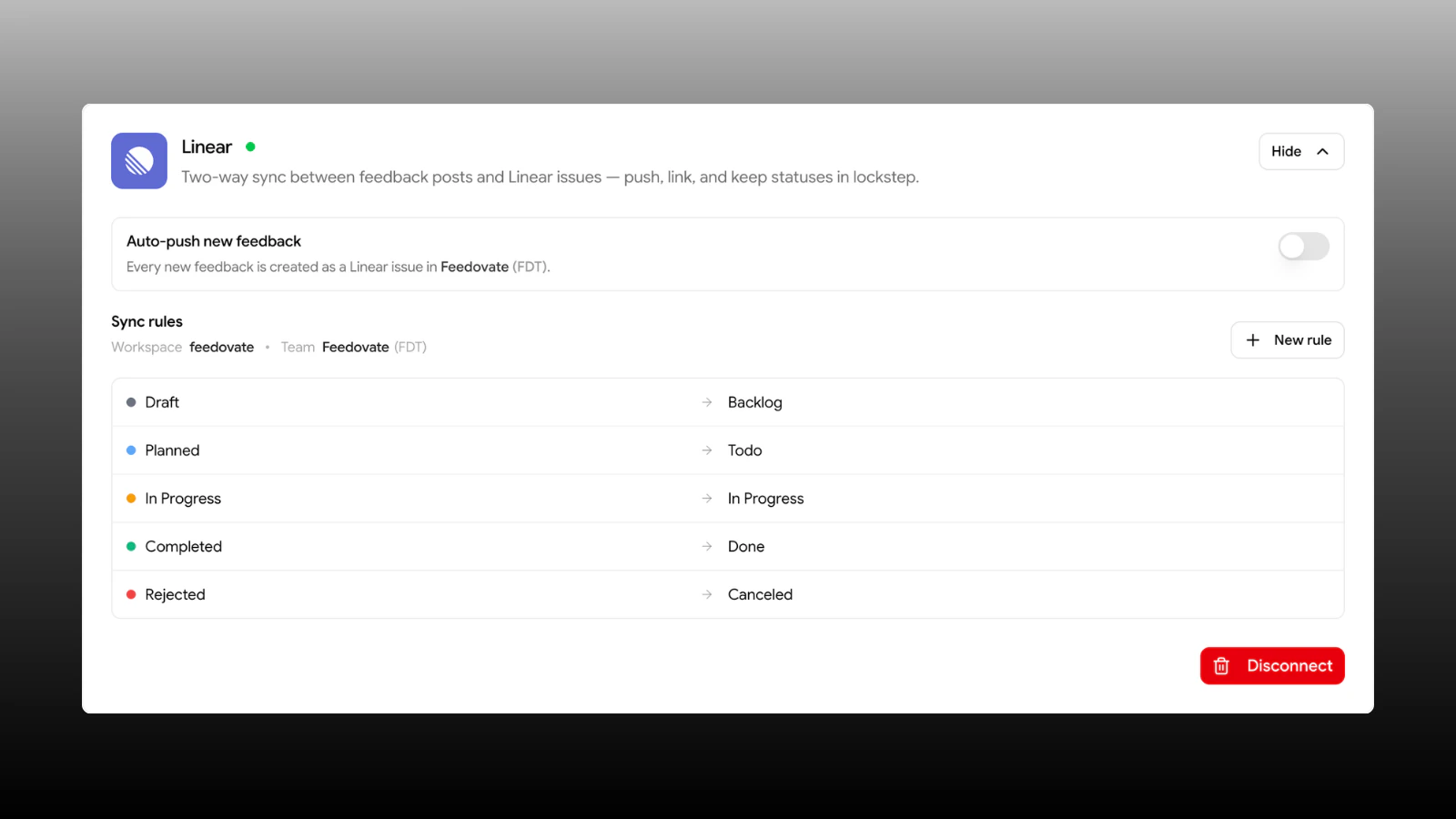
Sync rules are the control surface. If a status or state is not mapped, changes on that side are ignored for sync — nothing breaks, but the other tool will not update.
Connect Your Workspace
Authorize Linear
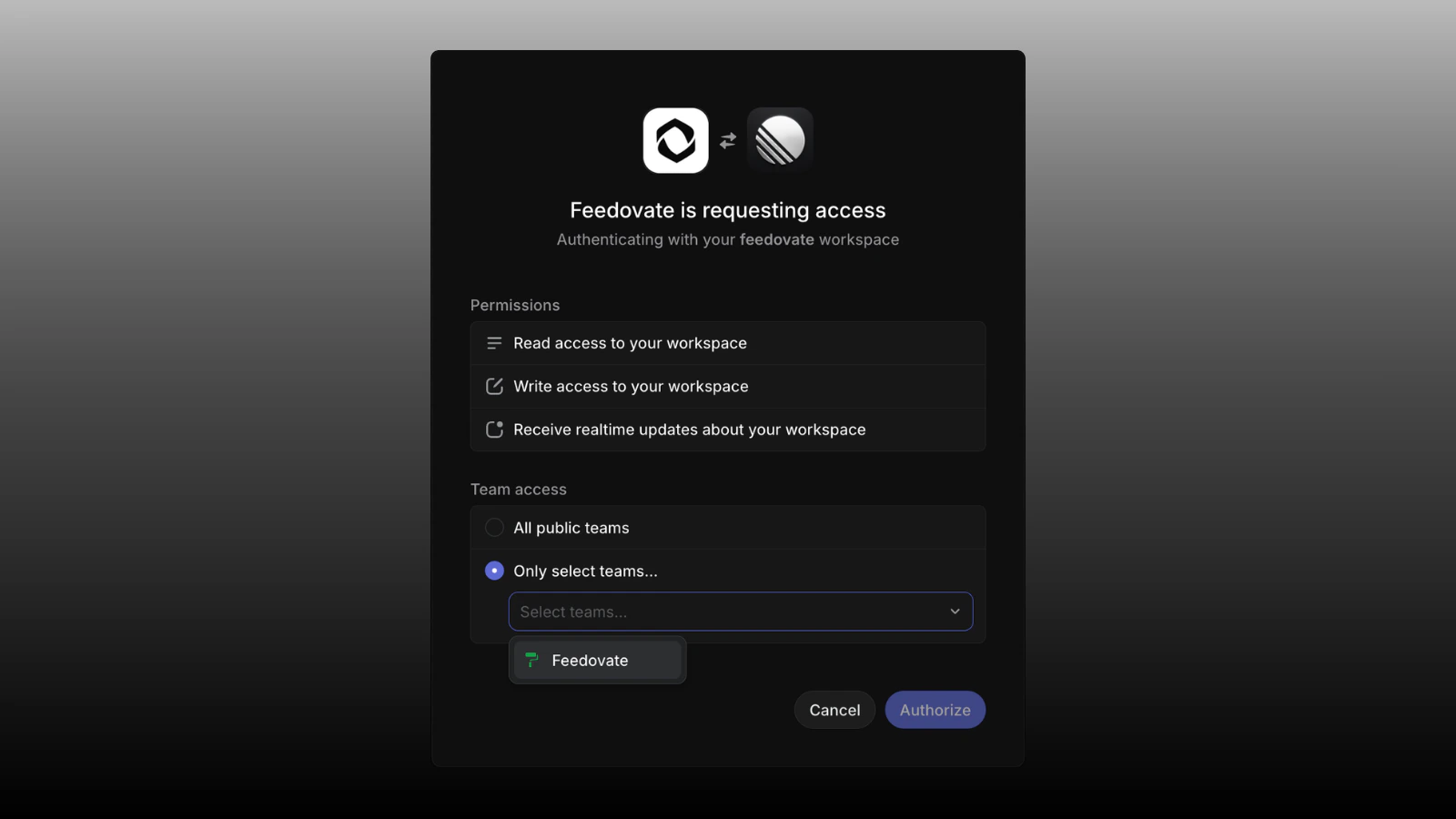
Click Connect to Linear. You are redirected to Linear to sign in and review what Feedovate can access.Feedovate requests read and write access so it can list teams and workflow states, create and update issues, and manage issue links. Webhooks are configured at the Feedovate OAuth app level in Linear — you do not need to paste a webhook URL during setup.
Sync Rules
Add a rule
- Go to Settings → Integrations → Linear → Configure
- Under Sync rules, click New rule
- Choose a Feedovate status and a Linear state from your default team
- Click Add rule
What syncs automatically
| Event | Result |
|---|---|
| You change status on linked feedback in Feedovate | Linear issue moves to the state mapped to that status (if a rule exists and the issue is not already in that state) |
| Someone changes workflow state on a linked issue in Linear | Feedovate feedback status updates to the status mapped to that state |
| Status or state has no rule | No automatic update on the other side |
Feedovate uses echo detection so its own Linear updates (from outbound sync) do not bounce back and forth. You should not see status flicker or duplicate updates under normal use.
Auto-Push New Feedback
Push or Link Feedback
Create new
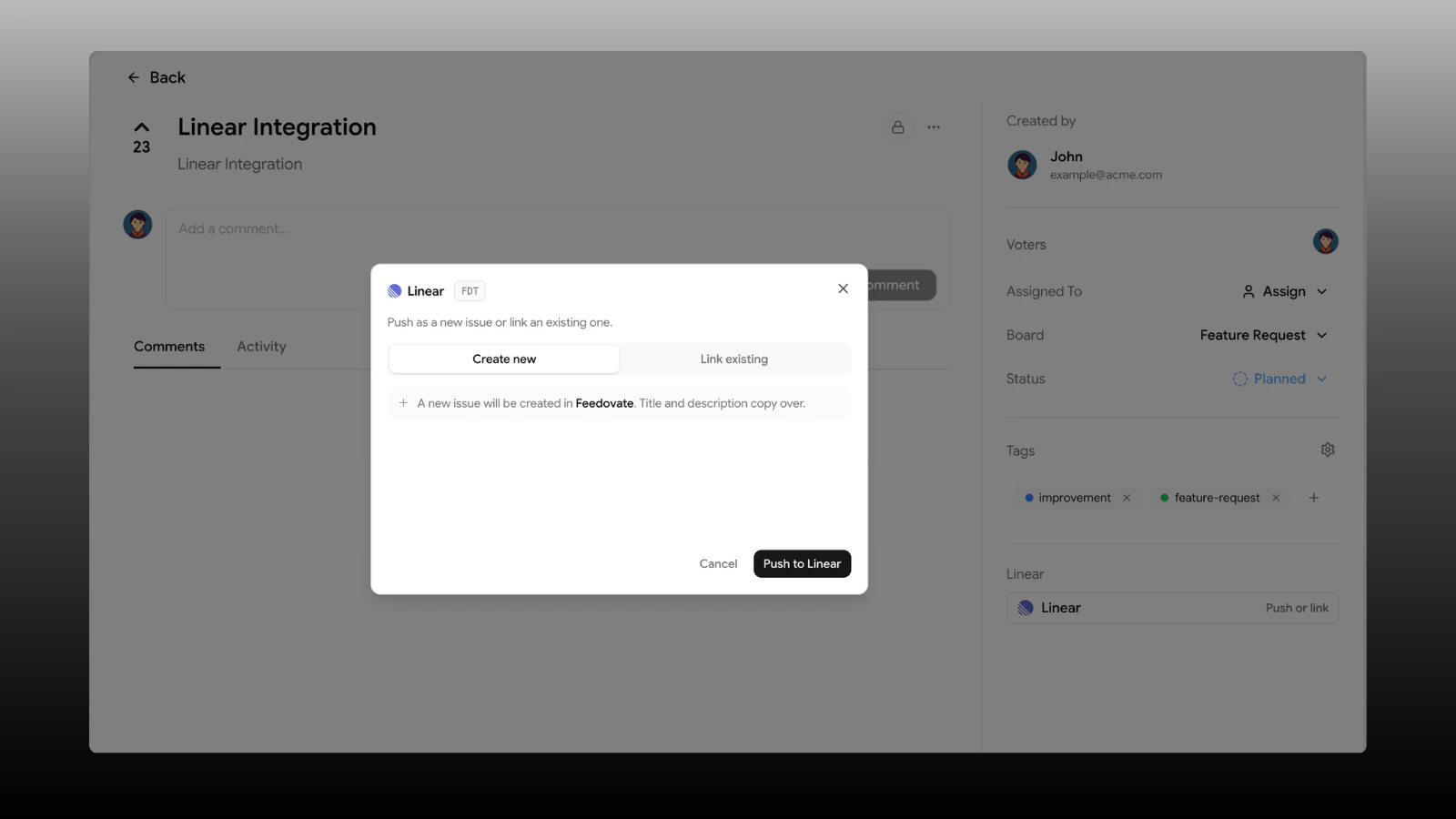
Push to Linear creates an issue in your default team with the feedback title and description. The issue is tagged with the workspace Feedovate label and shows a Feedovate card in Linear’s sidebar.
| Constraint | Detail |
|---|---|
| One link per feedback | A post cannot link to two Linear issues |
| One link per issue | A Linear issue cannot link to two feedback posts |
| Unlink | Removes the link and the Feedovate sidebar card in Linear. Does not delete the Linear issue |
Push Linear issues to Feedovate
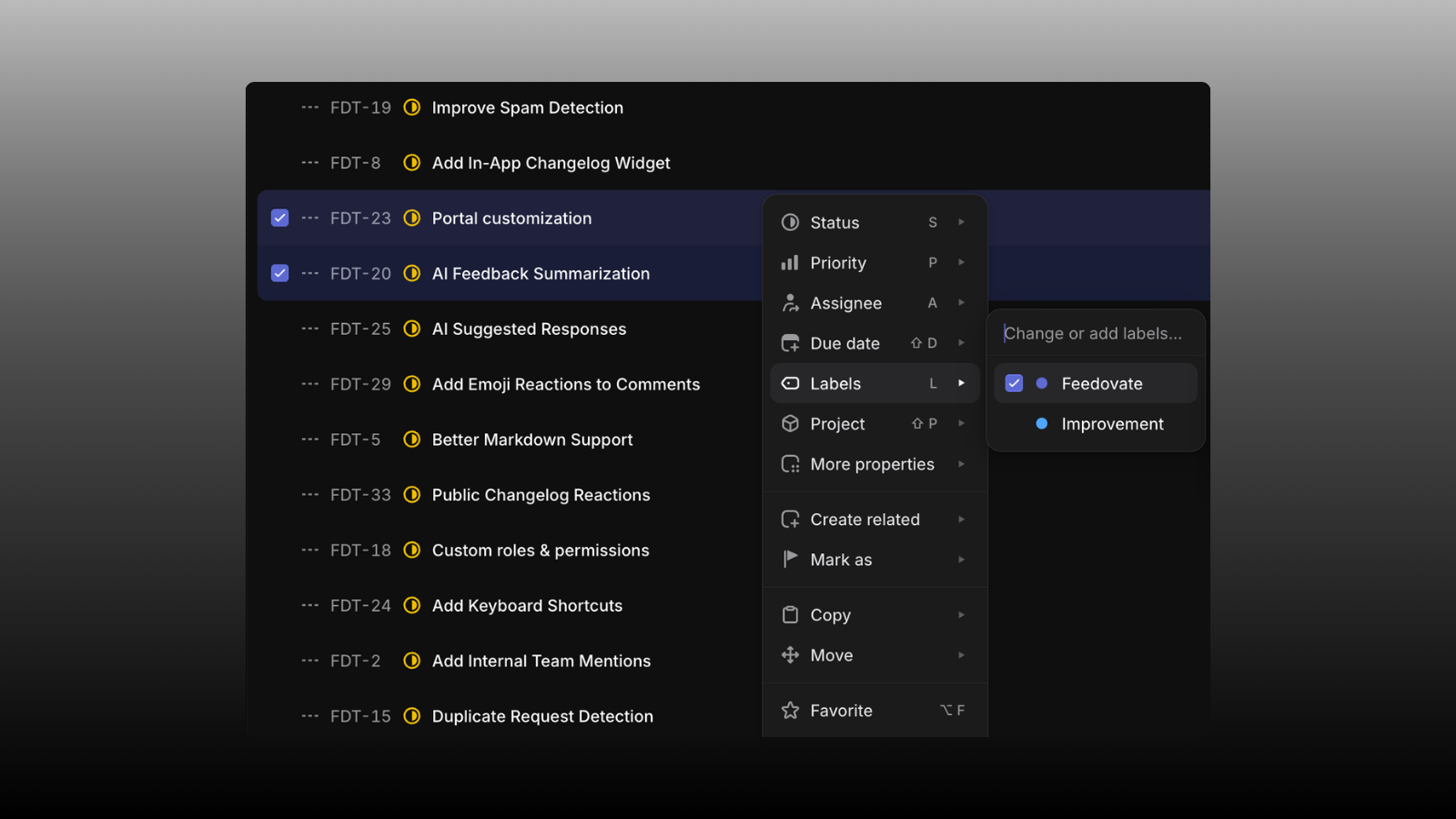
#5E6AD2) so your team can tag issues in one click.
| Use | Behavior |
|---|---|
| Visual marker | Issues you push or link from Feedovate are tagged so the team can see they came from customer feedback |
| Push to Feedovate | Assign the Feedovate label on an issue (on create or update) to import it as linked feedback if one does not exist yet |
- Uses the issue title and description
- Gets a status from sync rules (based on the issue’s current state) or your project’s default status
- Is created as private (internal) so your team can review before publishing to the portal
- Appears with source Linear in the dashboard
Sidebar Cards in Linear
Linked issues show a native Linear attachment on the issue sidebar:- Title — feedback title
- Link — opens the feedback in Feedovate admin
- Subtitle — “View on Feedovate”
Disconnect Linear
- Go to Settings → Integrations
- Open Linear → Configure
- Click Disconnect and confirm
- Status sync and webhooks stop for this project
- Feedback ↔ issue links are cleared
- Feedovate sidebar cards on Linear issues are removed when possible
- You can reconnect anytime; you will need to set up sync rules again
Troubleshooting
Status did not sync
Status did not sync
- Confirm the feedback is linked to a Linear issue (identifier shown on the feedback page)
- Check that a sync rule exists for the status or state you changed
- Remember: unmapped statuses or states never sync
- Wait a few seconds — Linear webhooks are near-real-time but not instantaneous
Cannot push or link
Cannot push or link
- Already linked — one feedback, one issue. Unlink first if you need a different issue
- Issue taken — another feedback post may already use that Linear issue
- Linear disconnected — reconnect under Settings → Integrations
Auto-push created too many issues
Auto-push created too many issues
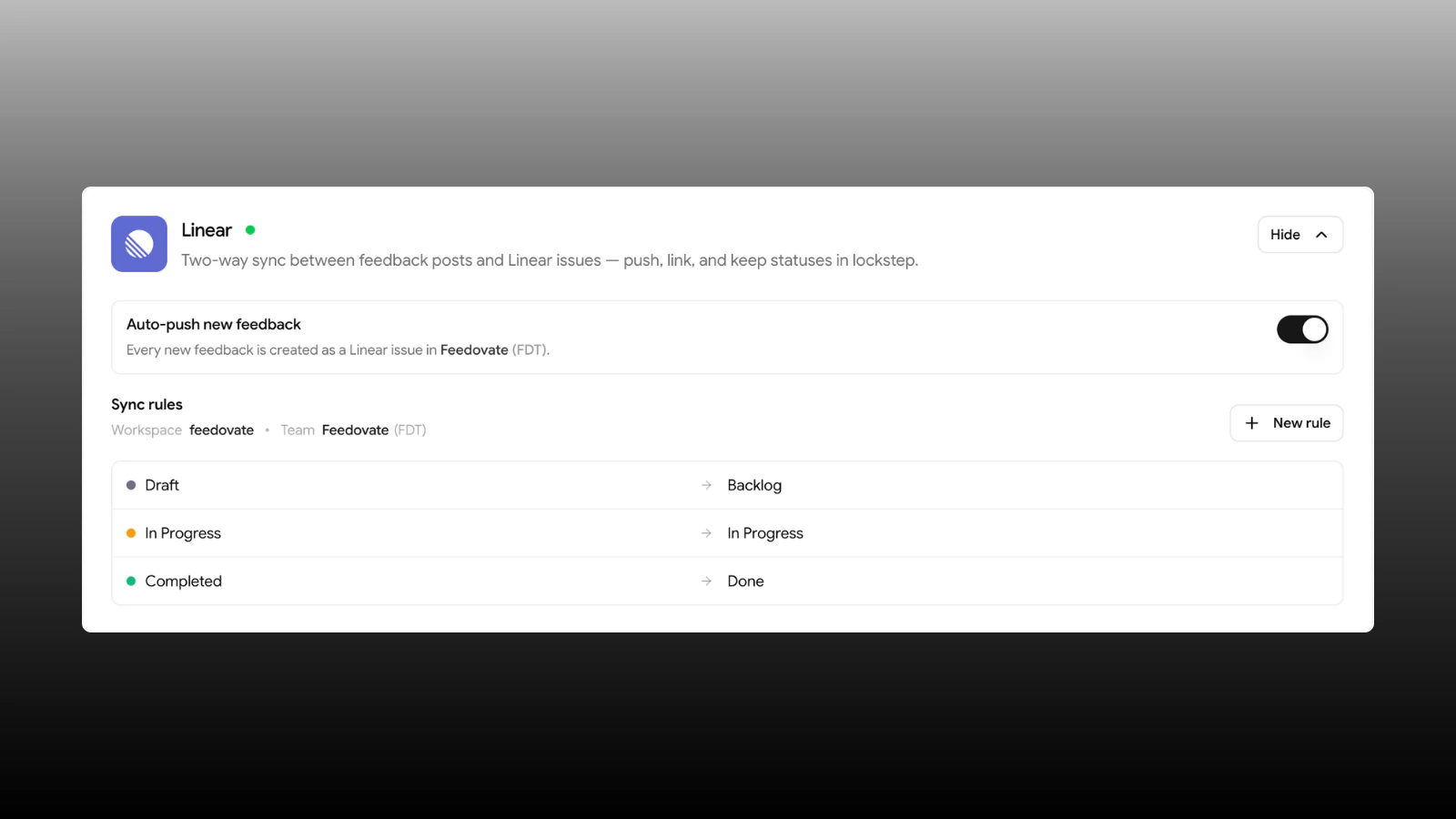
Disable Auto-push new feedback under Linear settings. Existing issues stay in Linear; unlink individual posts in Feedovate if needed.
Imported feedback is not on the portal
Imported feedback is not on the portal
Label-triggered imports are private by design. Open the post in admin, review it, then publish when ready.
Linear states failed to load
Linear states failed to load
Use Retry in the sync rules panel. If it persists, disconnect and reconnect Linear, and confirm your Linear account still has access to the default team.
Permission denied during setup
Permission denied during setup
Connecting Linear requires Manage integrations. Ask a workspace Admin to connect, or grant that permission to your role.
Wrong team or missing teams
Wrong team or missing teams
Team access is chosen on Linear’s authorization screen, not inside Feedovate.
- Go to Settings → Integrations → Disconnect Linear
- Click Connect to Linear again
- On the authorize screen, select Only select teams… and pick the correct team(s), then click Authorize
Privacy & Data
Feedovate sends to Linear only what is needed to sync:- Feedback title and description (on push or import)
- Issue and workflow metadata (IDs, states, labels)
- OAuth tokens stored encrypted for your project
Next Steps
Manage Feedback
Triage feedback before or after you push it to Linear.
Roadmap
Keep customers informed while engineering works in Linear.
Slack Integration
Alert the team in Slack when new feedback arrives.
Team Collaboration
Control who can connect integrations and manage feedback.